How to Access and Use phpMyAdmin
phpMyAdmin is a web-based tool that allows you to manage your MySQL databases visually. This guide explains how to find your database credentials in the Immortal Hosting panel and use them to log in, import, and export data.
Prerequisites
- An active server on the Immortal Hosting panel.
- A database created for your server (if you haven't created one yet, do that first in the Databases tab).
Step 1: Get Your Database Credentials
Before you can log in to phpMyAdmin, you need your specific username and password from the panel.
- Log in to the Immortal Hosting Panel.
- Navigate to your Server Console.
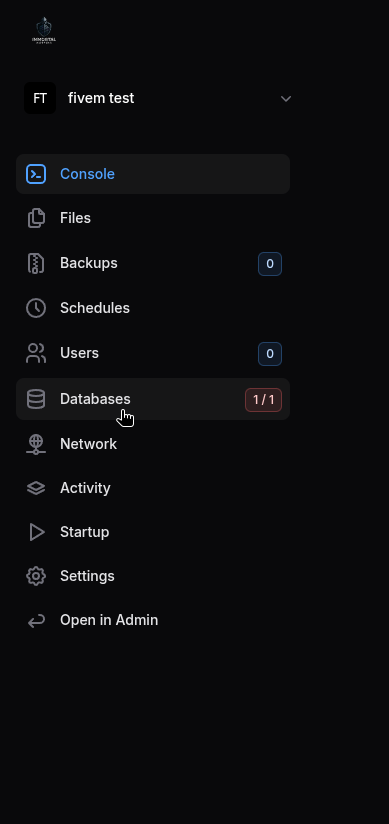
- Click on the Databases tab in the top navigation bar.
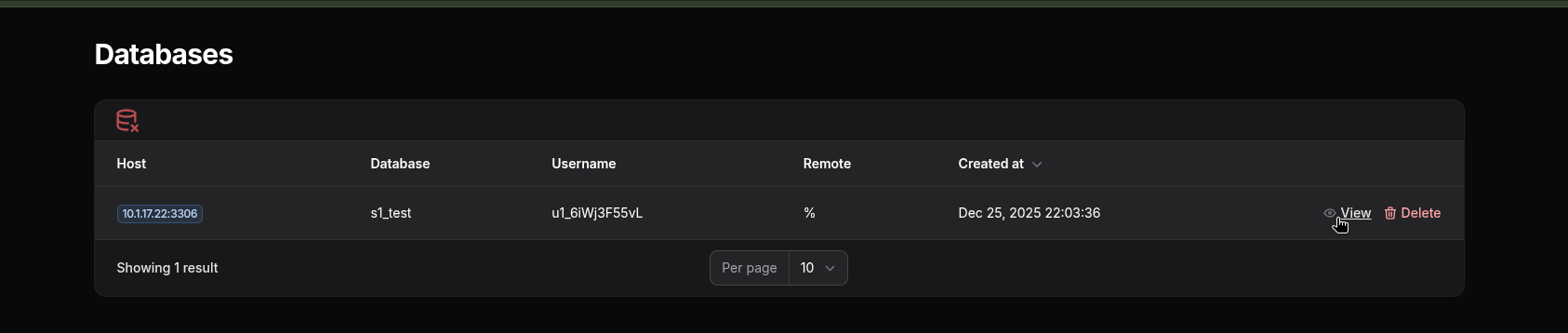
- Locate the database you want to manage.
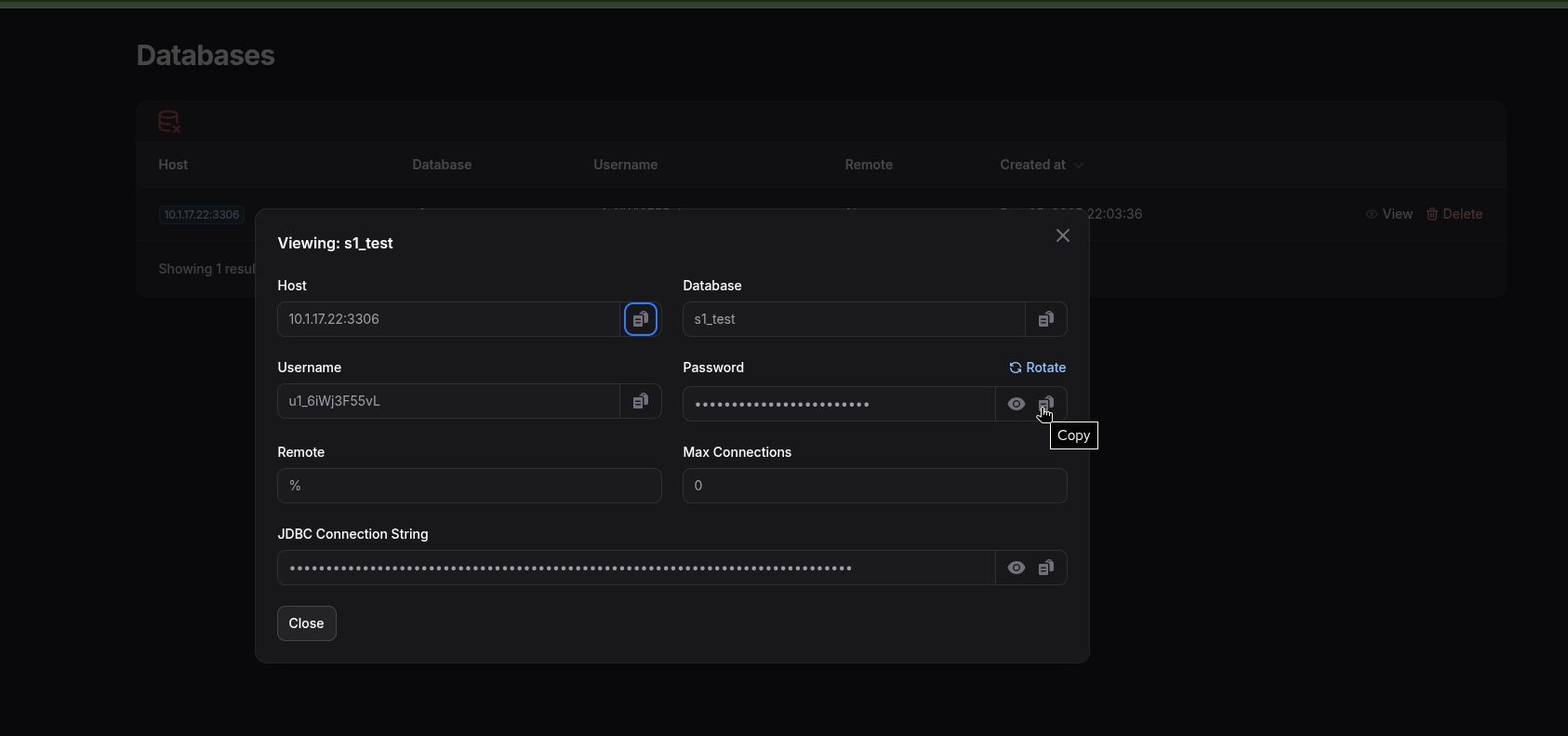
- Click the Eye Icon (or "Details" button) next to the database connection string.
- Copy the following details:
- Username (e.g.,
u123_database) - Password (Click the eye icon to reveal it)
- Username (e.g.,
Step 2: Log in to phpMyAdmin
- Go to: PhpMyAdmin
- Username: Paste the database username you copied.
- Password: Paste the database password you revealed.
- Click Go or Login.
Step 3: Importing a Database (Upload .sql file)
If you have a backup file (usually ending in .sql) that you want to upload to your server:
- Once logged in, look at the sidebar on the left and click on your Database Name.
- Note: Do not try to import without selecting the database first.
- Click the Import tab in the top menu bar.
- Click Choose File and select the
.sqlfile from your computer. - Scroll down to the bottom and click Go.
- Wait for the green success message confirming the import is complete.
Step 4: Exporting a Database (Backup)
If you want to save a backup of your current database to your computer:
- Select your Database Name from the left sidebar.
- Click the Export tab in the top menu bar.
- Export Method: Select Quick.
- Format: Ensure SQL is selected.
- Click Go.
- Your browser will download the file automatically.
Common Troubleshooting
"Access Denied" Error
- Ensure you are using the Database Password, not your panel account password.
- Check that you copied the username exactly (it often includes a prefix like
u123_).
"No Database Selected" Error
- Before clicking "Import" or "Export," make sure you have clicked your actual database name in the left-hand sidebar. The main screen is just the server overview; you must be inside the database to work on it.