How to Generate and Add an SFTP Public Key
This guide explains how to generate a secure SSH key pair and add the public key to your account on the Immortal Hosting panel. Using an SSH key allows you to authenticate and view files via SFTP.
Prerequisites
- A terminal (Command Prompt/PowerShell on Windows, Terminal on macOS/Linux).
- An active account on the Immortal Hosting panel.
- An SFTP client installed (e.g., FileZilla).
Step 1: Generate the SSH Key Pair
We recommend using the Ed25519 algorithm, as it is more secure and faster than older RSA keys.
- Open your terminal or command prompt.
- Run the following command (you can replace the comment inside the quotes with your own identifier, such as your email):
ssh-keygen -t ed25519
- File Location: The system will ask where to save the key. Press Enter to accept the default location (usually
~/.ssh/id_ed25519). - Passphrase: You will be asked for a passphrase.
- Recommended: Enter a secure passphrase for extra security.
- Optional: Press Enter twice to leave it empty (no password required when logging in).
Step 2: Copy Your Public Key
You need to copy the contents of the public key file (the one ending in .pub).
On Windows (PowerShell)
Run this command to display your key:
Get-Content $env:USERPROFILE\.ssh\id_ed25519.pub
On macOS / Linux
Run this command to display your key:
cat ~/.ssh/id_ed25519.pub
Copy the entire output. It should look something like this:
ssh-ed25519 AAAAC3NzaC1lZDI1NTE5AAAAI... your_username
Step 3: Import into Immortal Hosting Panel
- Log in to the Immortal Hosting Panel.
- Click on your Account Avatar in the top navigation bar (top right).
- Select SSH Keys from the dropdown or account menu.
- Click the Create or New SSH Key button.
- Fill in the details:
- Name: Give the key a recognizable name (e.g., "My Laptop").
- Public Key: Paste the key string you copied in Step 2.

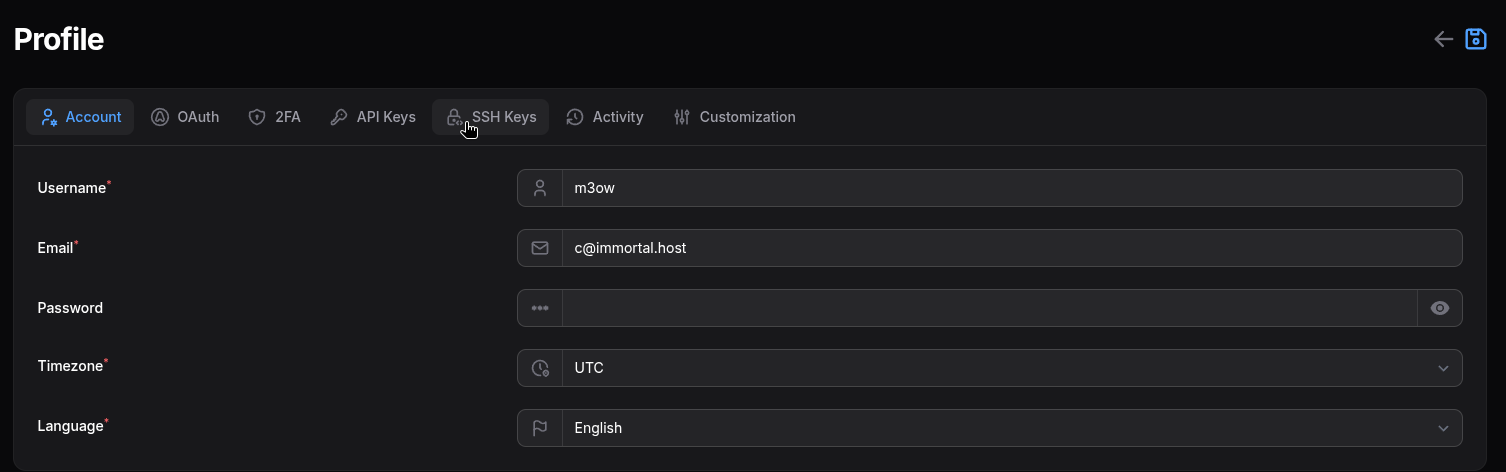
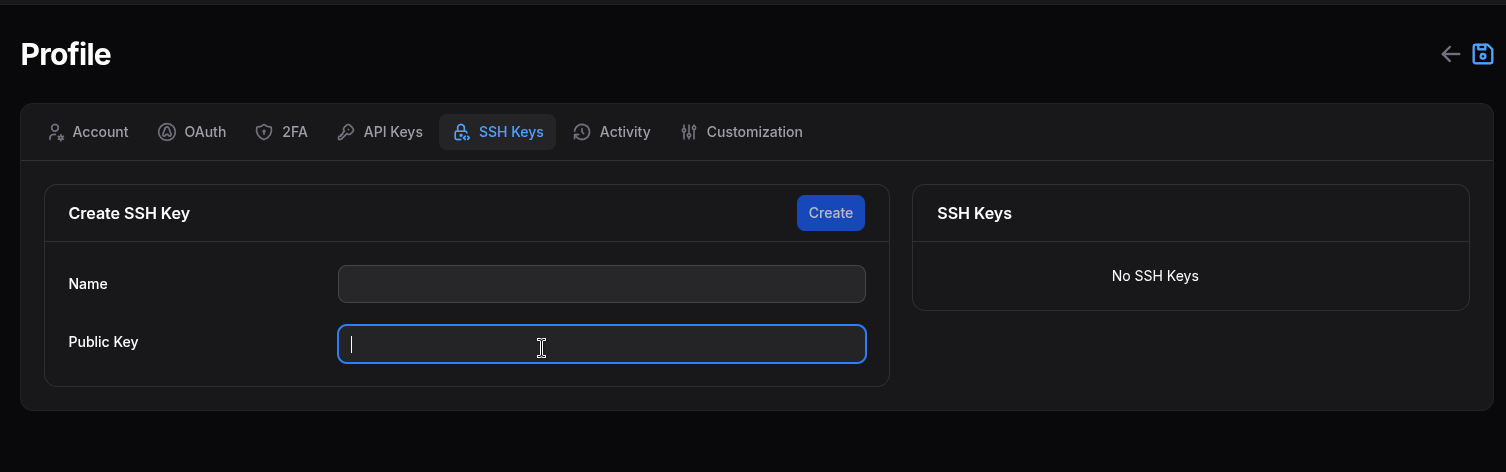
- Click Save.
Step 4: Configure FileZilla
Now that your key is added to the panel, configure FileZilla to use it.
- Open FileZilla.
- Go to File > Site Manager (top left corner).
- Click New Site and name it (e.g., "Immortal Server").
- Configure the General tab:
- Protocol: Select
SFTP - SSH File Transfer Protocol. - Host: Enter the node address (server settings)
- Port: Enter your server's SFTP port (e.g.,
2255). - Logon Type: Select
Key file. - User: Enter your server username (e.g.,
user.123456). - Key file: Click Browse... and select the private key file you generated in Step 1 (the file without the
.pubextension). - Note: If FileZilla asks to convert the key format, click Yes.
- Click Connect.